Pages and blocks
Pages are the website's fixed pages: the home page, About, Contact, a privacy notice, and anything else you add. Each page is built from blocks: a hero banner, a row of numbers, a list of upcoming fixtures, and so on. You stack them in the order you want.
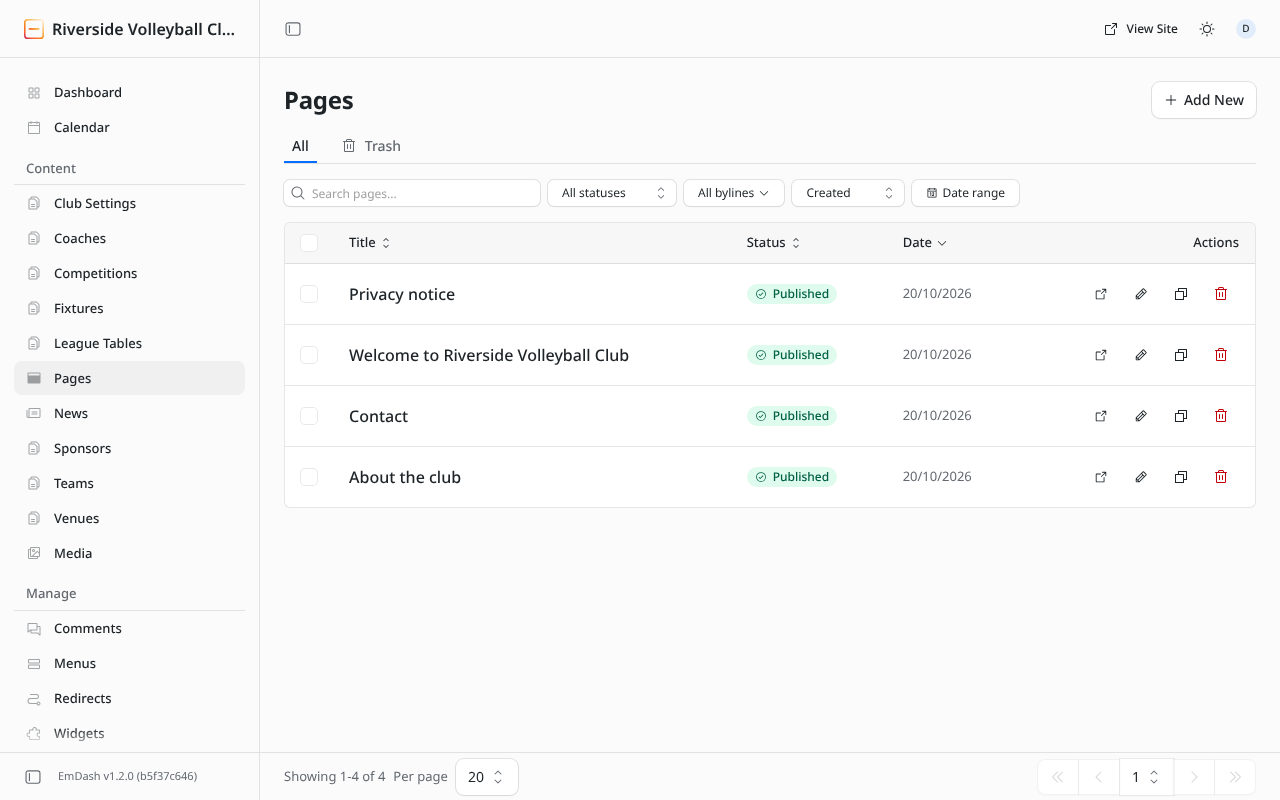
The home page is the page whose slug is home. Its web address is just your club's address.
Edit a page
- Click Pages, then the page's title.
- Change the fields or blocks you need.
- Click Publish changes.
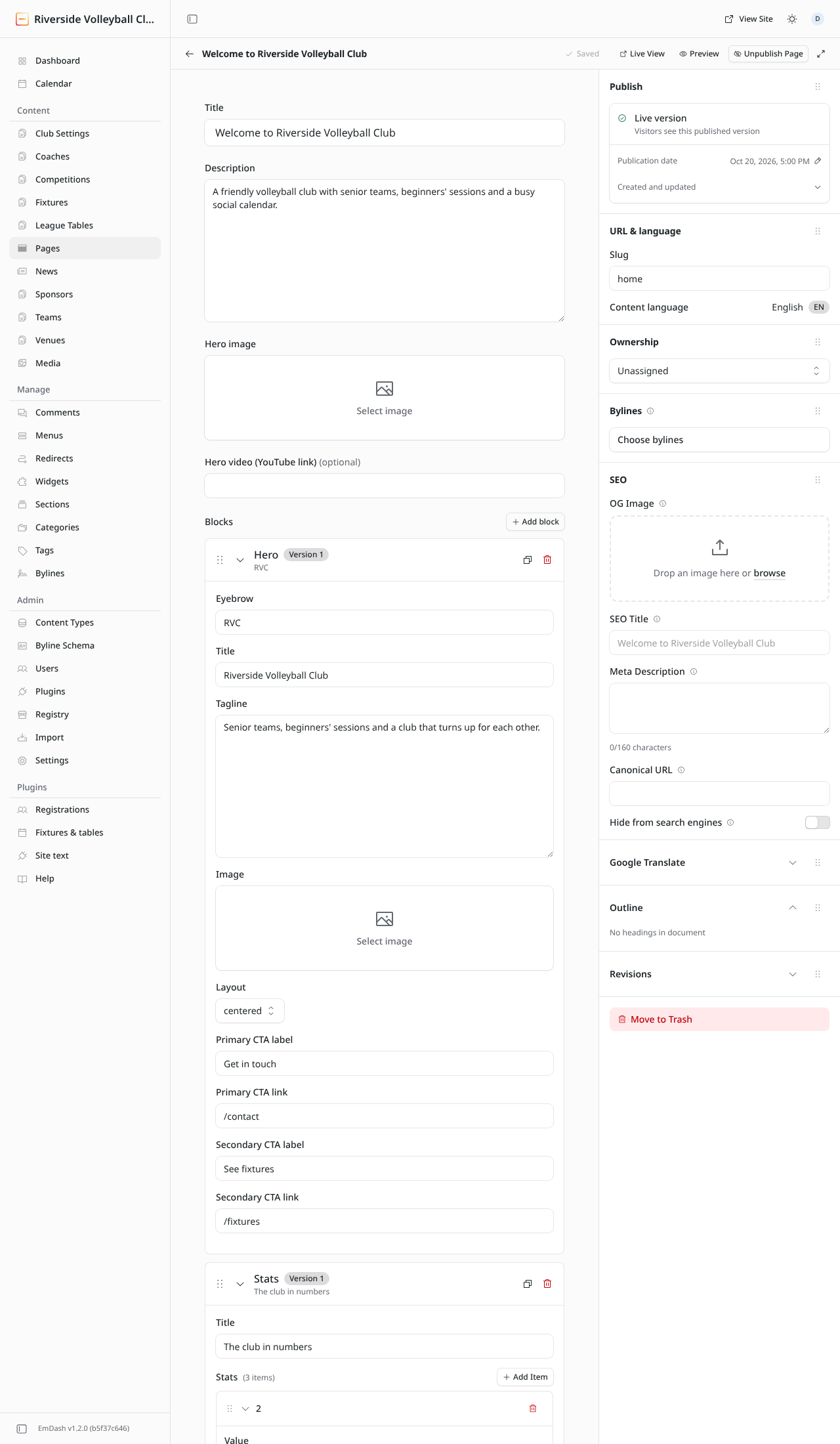
And the same page on the website, block by block (Hero, Stats, Feature grid, Fixtures embed, League table, News embed, CTA banner):
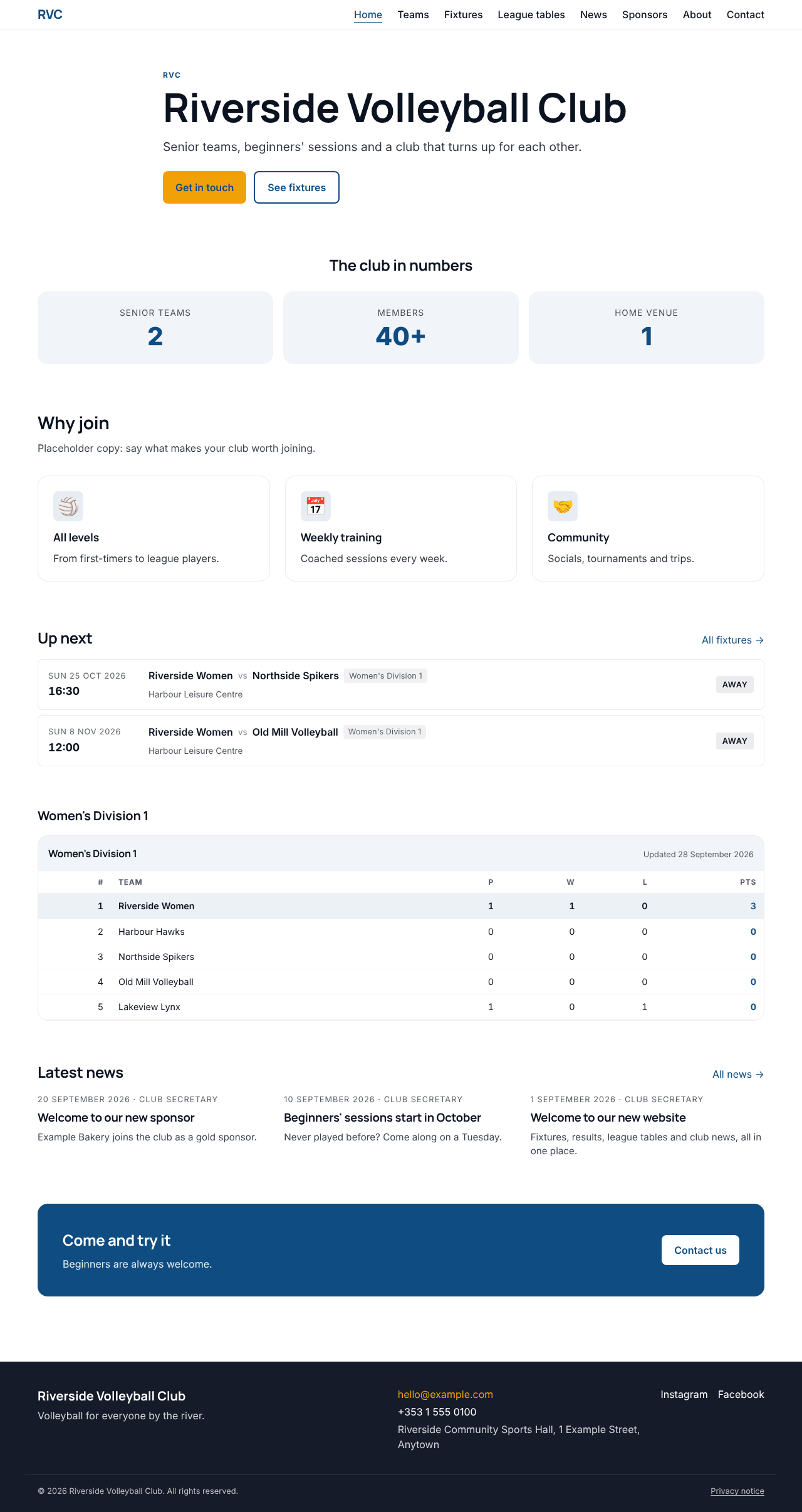
The fields at the top:
| Field | What it does |
|---|---|
| Title | The page's name, shown as its main heading (unless a Hero block replaces it). |
| Description | One or two sentences used in search results and when the page is shared. |
| Hero image | A wide picture at the top of the page. Optional. |
| Hero video (YouTube link) | Plays a YouTube video in place of the hero image. Optional. |
| Blocks | The page's content, top to bottom. |
| Body | Plain text content. Optional: pages are normally built from blocks. |
Working with blocks
Each block has a bar with its controls:

- Drag the dotted handle on the left to move the block up or down.
- The arrow folds the block away so the page is easier to scan.
- Duplicate (two squares) makes a copy just below.
- Delete (red bin) removes the block.
To add a block, click Add block and pick one from the list. It's added at the bottom; drag it into place.
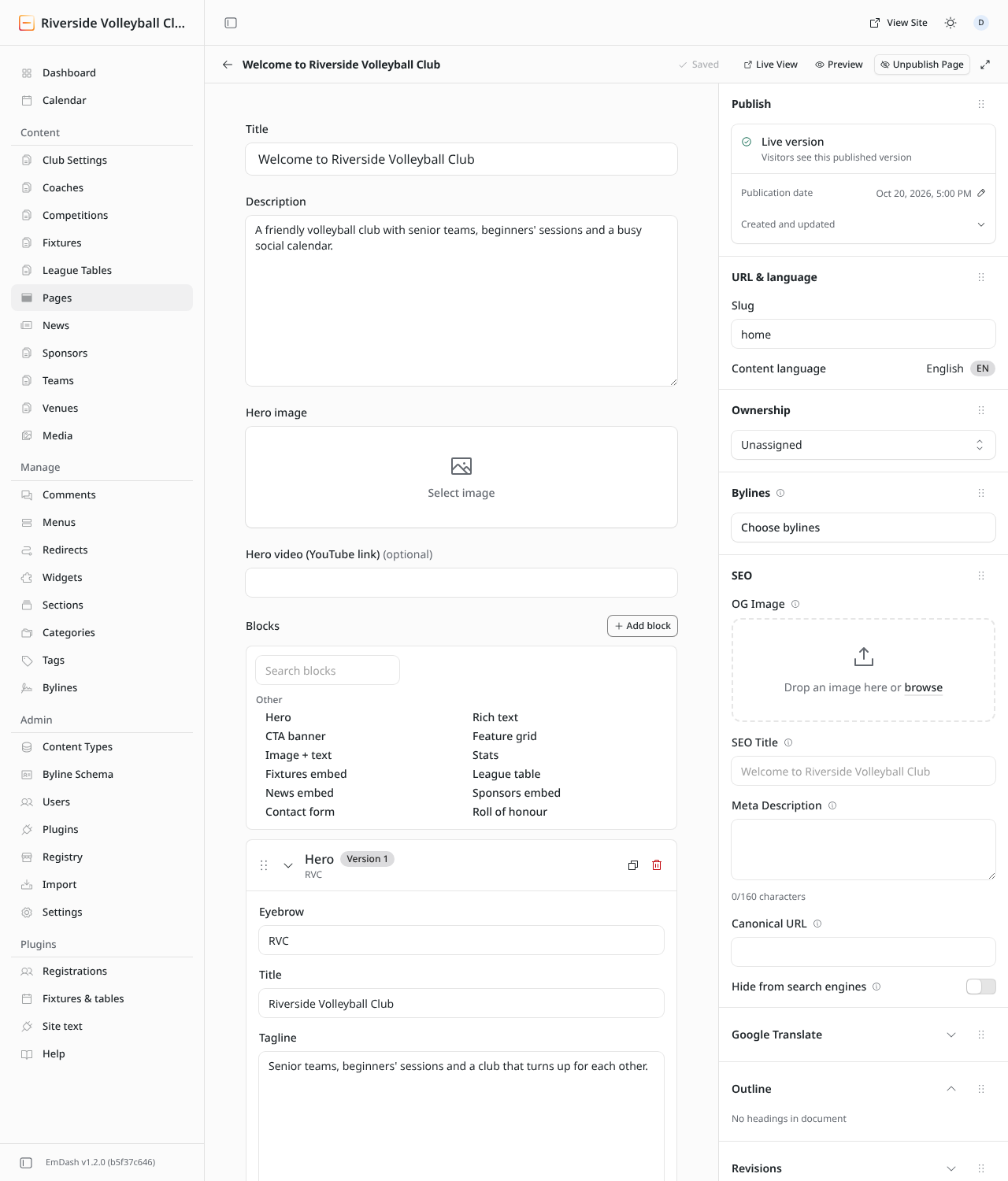
The blocks
| Block | What it shows | Fields to fill in |
|---|---|---|
| Hero | A large banner with a heading, a short line and up to two buttons. | Eyebrow (small text above the title), Title, Tagline, Image, Layout (centred, or image left or right), and a label and link for each button. |
| Rich text | Formatted text, like a news post body. | Title, Body, Align. |
| CTA banner | A coloured band with a call to action, e.g. "Come and try it". | Title, Body, CTA label, CTA link, Variant (bold or subtle). |
| Feature grid | Two to four boxes side by side, each with an emoji, a title and a line of text. | Title, Intro, Columns, and the Features list. |
| Image + text | A picture beside some text. | Image, Image position, Eyebrow, Title, Body, button label and link. |
| Stats | Big numbers, e.g. "2 senior teams, 40+ members". | Title and a list of Value + Label pairs. |
| Fixtures embed | The club's upcoming fixtures, recent results, or both. Filled in automatically. | Title, Limit (how many), Mode. |
| League table | One league table. Filled in automatically. | Title, League key (which table: see League keys), Compact (fewer columns). |
| News embed | The latest news posts. | Title, Limit. |
| Sponsors embed | Sponsor logos. | Title, Tier filter (e.g. gold to show only gold sponsors; empty for all). |
| Contact form | The contact form. Messages go to the club's contact email. | Title, Intro. |
| Roll of honour | Trophies and the seasons they were won. | Eyebrow, Title, Intro, Total label, and the Honours list (competition, seasons won separated by commas, optional group heading). |
Links in buttons
Button links (CTA link, Primary CTA link…) can be a page on your site, written from the first slash (/contact, /teams, /register), or a full address for another website (https://…).
Lists inside blocks
Blocks with a list (Stats, Features, Honours) have Add Item to add a row, and a bin on each row to remove it.
Add a new page
- Pages → Add New.
- Give it a title and add blocks.
- Check the Slug under URL & language: it becomes the address, e.g.
about→/about. - Publish.
- Add it to the site's menu so people can find it: see Menus.
The page in Google
Pages have the same SEO panel as news posts; see News posts.