Set up the league feed
The league feed gives your site your club's league data: your teams, their fixtures and results, the standings of their competitions, venues, and live scores. You need a club key from the league feed administrator. It starts with lf_ and is shown to them only once, so store it somewhere safe, such as the club's password manager.
1. Save the key
- Open Fixtures & tables (left-hand menu, under Plugins).
- Under Source, choose League feed (needs a club key from the league feed administrator).
- Paste the key into League feed key.
- Click Save source.
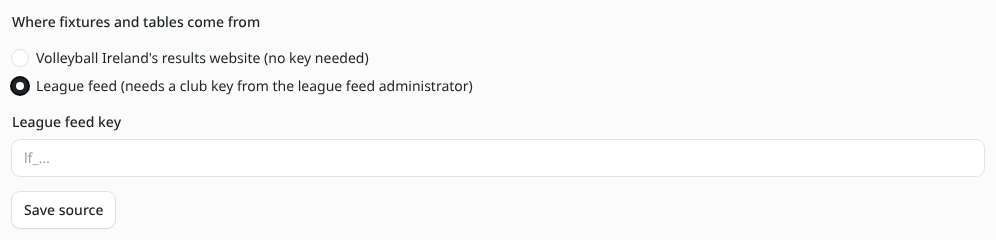
The key is stored encrypted. Once saved, the box shows only its first characters (lf_abc…). To replace it, paste a new key and save again.
If saving fails with a message about encryption, the website isn't set up to store secrets yet. Ask whoever looks after the website; it's a one-off setting on their side.
2. Check the connection
Click Check connection. The page loads your club's teams from the feed: one line for each of your teams in each competition (for example "DVC – Premier Men" and "DVC Lions – Premier Women").
3. Link your teams
Under Link a league team, the page suggests how to link each one ("Ready to link: … as PM, fixtures for Men's 1st Team"), matching league teams to the teams on your site by name.
- Happy with the suggestions? Click Link all teams (or Link this team when there's one). You can change or remove any of them afterwards.
- Want to set one up yourself? Use the form under "Or link one at a time":
| Field | What to put in it |
|---|---|
| League team | Your team in the league, as the league lists it. |
| Show the competition as | The competition name on your site, e.g. "Premier Men". Leave empty to use the league's own name. |
| League key | The short code for this table, e.g. PM. See League keys. Leave empty to use the league's code. |
| Our team on this site | Which of your teams the fixtures belong to. Choose "—" to import only the table. |
| Import fixtures and results | On: fixtures and results are imported for this team. Off: only the league table. |
Then click Link team. Linked teams appear in the League teams table, with a Remove button on each.
4. Sync
Click Sync now. The page shows how many changes it found; they're saved in batches over the next few minutes. See Syncing, locks and duplicates.
5. Point your teams at their tables
Open each team under Teams and set League key to the key you used, so its page shows the right table.
If the feed is paused or the key stops working
If the league feed administrator pauses your key, or the key is wrong, a banner on the Fixtures & tables page says so. Your site keeps everything it already imported; it just stops updating until the key works again. Contact the league feed administrator.
New season
With the league feed, new competitions appear as new league teams under Link a league team: link them the same way. Old competitions can be removed when the season is over; their table and fixtures stay on the site.