Use the results website instead
If your club doesn't have a league feed key, the site can read the federation's public results website instead. It's less automatic: you add each competition yourself, by its ID, and the IDs change every season.
1. Choose the source
On Fixtures & tables, under Source, choose the results website option and click Save source. This is the default for a new site.
2. Find the competition's ID
- On the federation's results website, open the competition (e.g. Premier Men).
- Look at the address bar. The number after
ID=is the competition's ID. For example,…/CompetitionHome.aspx?ID=80is ID 80.
3. Add the competition
Scroll to Add a competition and fill it in:
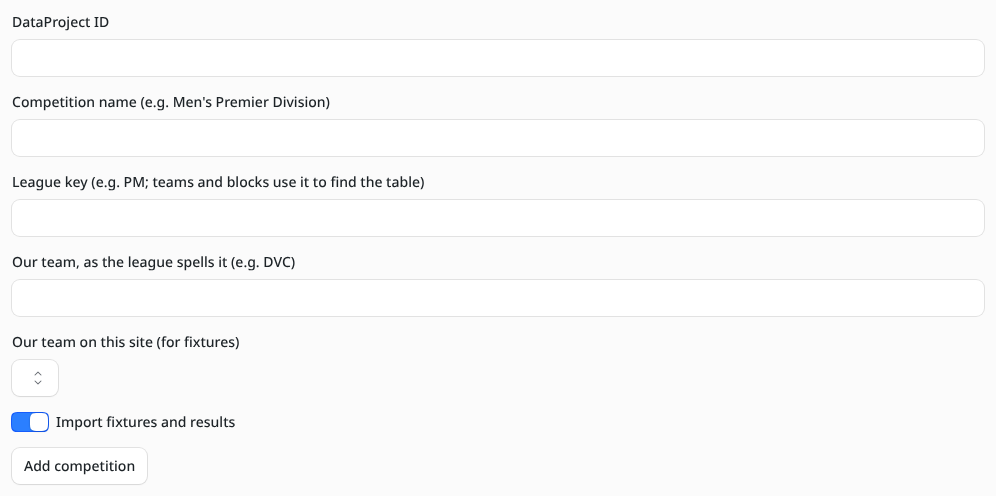
| Field | What to put in it |
|---|---|
| DataProject ID | The number from step 2. |
| Competition name | How it's shown on your site, e.g. "Men's Premier Division". |
| League key | The short code for this table, e.g. PM. See League keys. |
| Our team, as the league spells it | Exactly as your team's name appears in the league table, e.g. DVC. This is how the site finds your fixtures. |
| Our team on this site | Which of your teams the fixtures belong to. |
| Import fixtures and results | On to import fixtures, off for the table only. |
Click Add competition, then Sync now.
Repeat for each competition your teams play in.
Every new season
Competition IDs change each season. When the new season's competitions are on the results website:
- Add each new competition with its new ID, using the same league key as last season.
- Remove last season's competition from the Competitions table (its table and fixtures stay on the site, and become editable again).
- Click Sync now.