Finding your way around
The dashboard
After signing in you land on the dashboard.
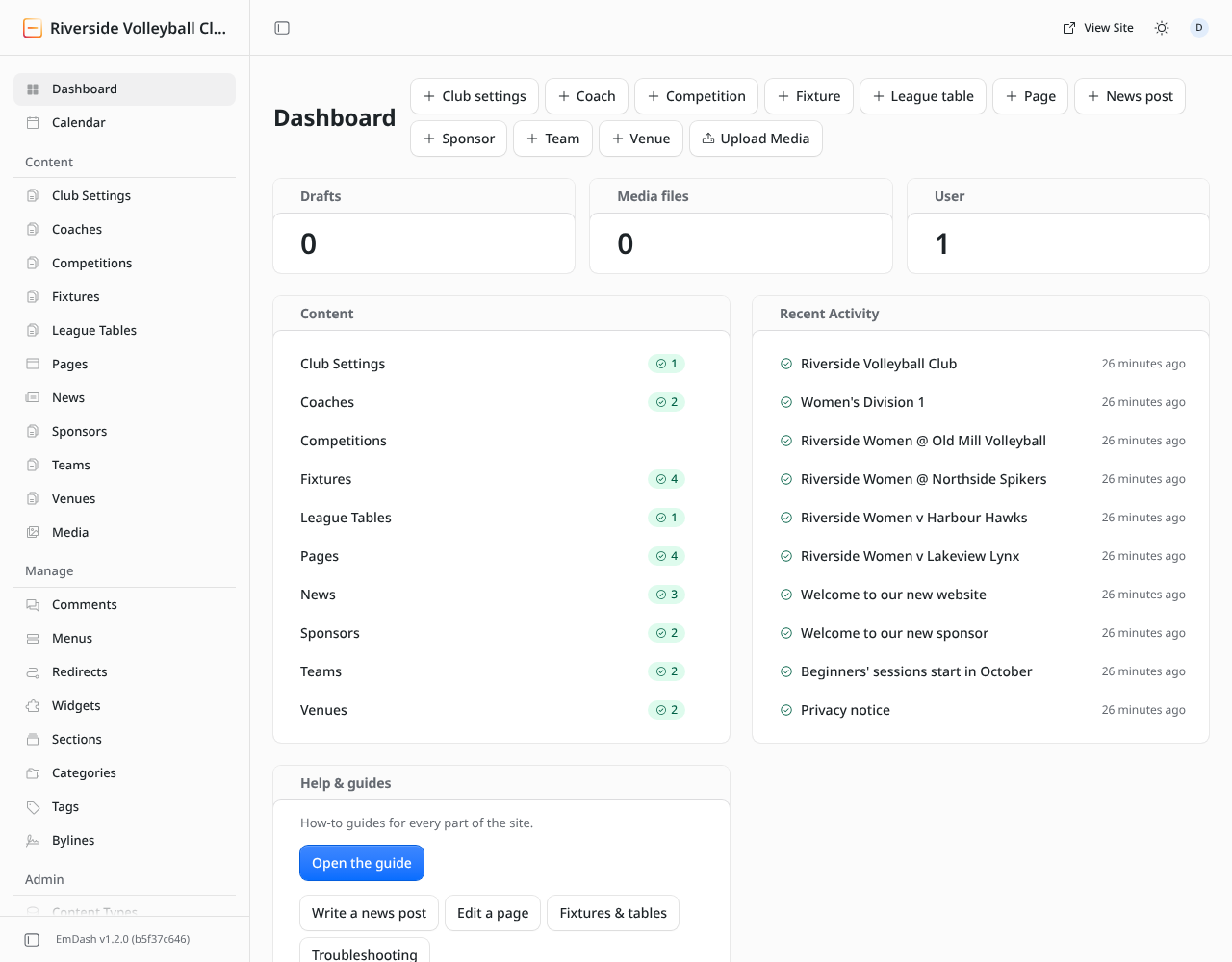
- The buttons along the top (+ News post, + Fixture, + Team…) start something new in one click.
- Drafts counts entries with changes that aren't on the public site yet. See Drafts, publishing and scheduling.
- Content lists every type of content with how many are published.
- Recent Activity shows what was changed most recently. Click any line to open it.
- Help & guides opens this guide.
The left-hand menu

The menu is in four groups. Which ones you see depends on your role: an Author sees less than an Administrator.
Content: the things that appear on the website.
| Menu item | What it holds | Guide |
|---|---|---|
| Club Settings | Contact details, colours, fonts, tagline | Club settings |
| Coaches | Coach profiles | Coaches |
| Competitions | Paid competition entries (only if your club uses them) | |
| Fixtures | Matches and results | Fixtures and results |
| League Tables | Standings, usually imported automatically | Fixtures & tables |
| Pages | Home, About, Contact and any other page | Pages and blocks |
| News | News posts | News posts |
| Sponsors | Sponsor logos and links | Sponsors |
| Teams | Teams, training times and rosters | Teams and rosters |
| Venues | Halls and where to find them | Venues |
| Media | Every image you've uploaded | Images and media |
Manage: Menus (the site's navigation), Redirects, and a few tools most clubs don't need (Comments, Widgets, Sections, Categories, Tags, Bylines).
Admin (administrators only): Users, Settings, and technical items such as Content Types and Plugins. Leave Content Types, Plugins, Registry and Import alone unless whoever looks after the website asks you to change something there: they change how the site is built, not what it says.
Plugins: club features added to the site.
- Registrations: player registrations from the website's form. See Player registrations.
- Fixtures & tables: where league fixtures and tables come from. See Fixtures & tables.
- Site text: the site's fixed wording, such as buttons and form labels. See Site text.
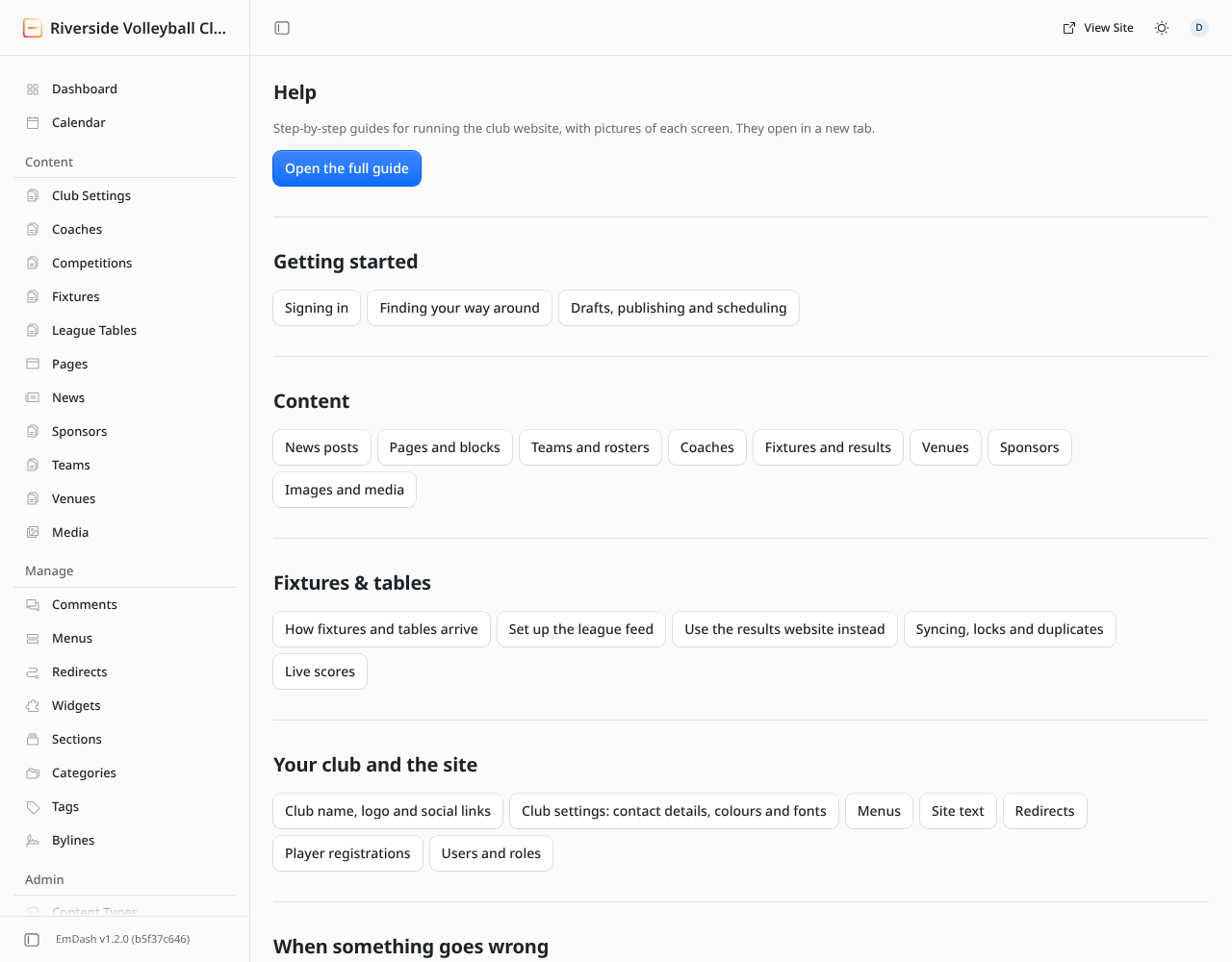
- Help: links to this guide.
The top bar
- View Site opens the public website in a new tab.
- The sun/moon icon switches the admin between light and dark. It doesn't change the public site.
- Your initial opens your account menu, where you sign out.
- The panel icon on the left hides the menu to give you more room.
Lists
Click any menu item under Content to see a list of entries, newest first. From a list you can:
- click a title to open and edit it,
- use Add New to create one,
- filter by status (published, draft, scheduled) or search by title,
- open Trash to restore something deleted by mistake.