Drafts, publishing and scheduling
The admin saves your work as you type. Nothing reaches the public website until you publish it, so you can work on a change over several sittings without anyone seeing it half done.
The Publish panel
Every entry has a Publish panel on the right.
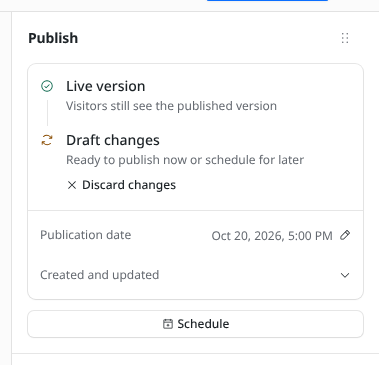
- Live version: visitors see this published version.
- Publication date: the date shown on the entry. Click the pencil to change it.
- Created and updated: when, and by whom.
Editing something that's already published
- Open the entry and make your change. It saves by itself: you'll see Saved at the top.
- The Publish panel now shows Draft changes. Visitors still see the old version.
- Click Publish changes at the top right when you're ready.
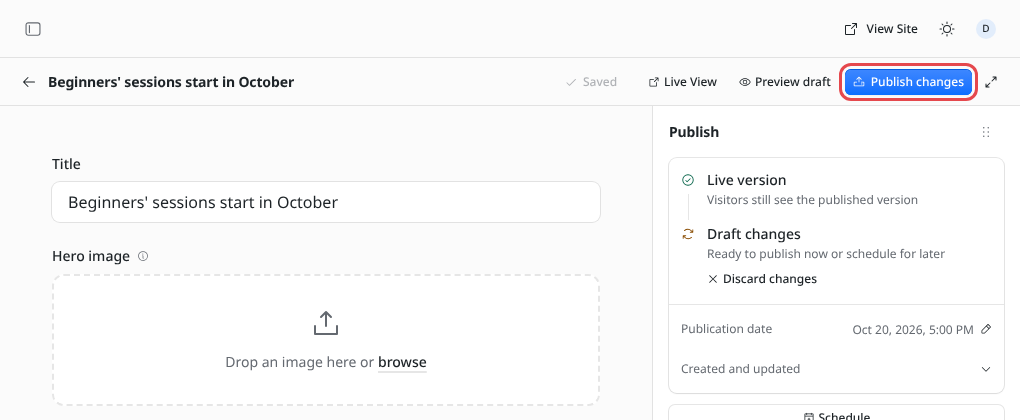
Changed your mind? Click Discard changes in the Publish panel to go back to the live version.
Preview draft (top bar) shows the page as visitors would see it with your changes, before you publish. Live View opens the published page.
Creating something new
A new entry starts as a draft. Fill it in, then click Publish. Until then it isn't on the site at all.
Scheduling
To publish later, for example a match preview the morning of the game:
- Finish the entry.
- In the Publish panel click Schedule and choose the date and time.
- The entry shows as Scheduled in the list and goes live by itself at that time.
Unpublishing
Unpublish (top bar) takes an entry off the website but keeps it in the admin as a draft. Use it for things that are out of date but worth keeping.
Deleting
Move to Trash is at the bottom of the right-hand panels. Trashed entries leave the website straight away. You can restore them from the Trash tab of the list.
Revisions
The Revisions panel (bottom right) lists earlier versions of the entry. Open one to see what it said, and restore it if a change went wrong.
How quickly changes appear
Published changes show on the website straight away. If you don't see one, reload the page; see Troubleshooting.